 TM
TM TM
TM
Sarah, a Senior Data Engineer at GlobalMart, started her Monday with an urgent message from her Engineering Manager:
"Subject: URGENT - Databricks Cost Spike"
"Weekend spend: $5,247. Monthly budget: $10,000. We need to investigate immediately."
She opened the Databricks workspace to investigate the issue. What she found:
The Cluster:
- Name: etl-processing-cluster (All-Purpose)
- Created by: Tom (Junior Data Engineer)
- Created: Friday, 5:00 PM
- Terminated: Monday, 8:00 AM
- Runtime: 62 hours
The Configuration:
- 8 workers (Standard_DS3_v2)
- Auto-termination: Disabled ❌
The Job History:
- 1 notebook execution: 12 minutes
- Task: Data validation on the bronze layer
- Completed: Friday evening
- Idle time: 61+ hours
- Cost: $5,247
Sarah called Tom to understand the situation.
Tom explained that he needed to run a quick data quality check on the bronze layer before the weekend, ahead of Monday’s production ETL run. He tried to use the shared all-purpose development cluster, but it was stopped, and he didn’t have permission to start it.
Under time pressure, he created his own cluster using default settings, an 8-worker all-purpose cluster. The validation finished in about 12 minutes, and he closed his notebook and left for the weekend, assuming everything was done.
Sarah: "Did you terminate the cluster before leaving?"
Tom: "No, I didn't think about it. I assumed it would auto-terminate like our production job clusters do when the job completes. I didn't realize all-purpose clusters work differently; they keep running until you manually terminate them or until the auto-termination timeout hits."
Sarah: "And I see auto-termination was disabled on this cluster?"
Tom: "I didn't change that setting. I think it was the default when I created it, or maybe I accidentally left it disabled. I honestly didn't pay attention to that field when creating the cluster. I was just focused on getting the validation done quickly."
Sarah identified three critical issues:
Issue #1: Insufficient Permissions on Shared Cluster
- Tom had "Can Attach To" permission on the shared dev cluster
- Could run notebooks when the cluster was running
- Could NOT start when the cluster was stopped
- Shared cluster auto-terminated after 30 minutes → Tom blocked
Issue #2: Unrestricted Cluster Creation
- Tom had cluster creation rights with no policy enforcement
- No guardrails on auto-termination, instance types, or costs
- Could accidentally create clusters that run indefinitely
Issue #3: Confusion Between Cluster Types
- Job clusters → Auto-terminate when job completes
- All-purpose clusters → Keep running until manually terminated or auto-termination hits
- Tom assumed all-purpose clusters behaved like job clusters
The 12-minute data validation job on the shared 4-worker all-purpose development cluster would have cost around $6. Instead, because Tom couldn't restart the shared cluster and created his own 8-worker cluster that ran for 62 hours, the cost was $5,247 nearly 875x more expensive.
This wasn't about blaming Tom. It was about understanding and correctly implementing cluster permissions.
If Tom had "Can Restart" permission instead of just "Can Attach To", he could have restarted the shared development cluster, run his 12-minute validation, and the cluster would have auto-terminated 30 minutes later. Total cost: $6.
The difference between "Can Attach To" and "Can Restart" just cost the team $5,247 and half their monthly budget.
Databricks provides four permission levels to balance productivity, cost control, and operational safety:
1. No Permissions → User cannot see or access the cluster
2. Can Attach To → Can run notebooks and Spark jobs, but cannot control cluster lifecycle
3. Can Restart → Can start/restart clusters, enabling self-service
4. Can Manage → Full control over cluster configuration and permissions
Each permission level serves a specific purpose. Choosing the wrong one can lead to blocked engineers creating expensive workarounds, or unrestricted access causing budget disasters.
Let's explore each permission level in detail with real data engineering scenarios.
Now that we've seen how the wrong permissions led to a $5,247 incident, let's understand each permission level in detail and when to use them correctly.
Databricks provides a hierarchical permission model for cluster access:
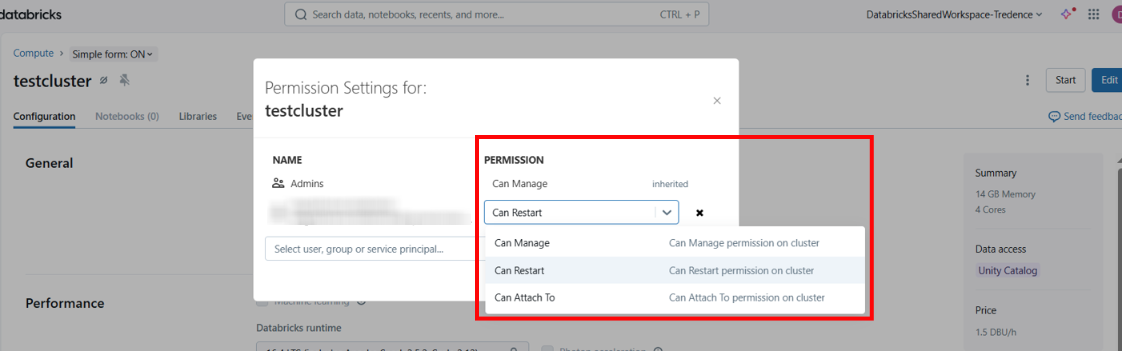
NO PERMISSIONS

↓

CAN ATTACH TO (Read & Execute)

↓

CAN RESTART (Self-Service Control)

↓

CAN MANAGE (Full Control)
Each level builds on the previous one, granting progressively more control. Let's explore each permission with real data engineering scenarios.
What Users CAN Do:
- ✅ View the cluster in their cluster list
- ✅ Attach notebooks to the cluster
- ✅ Run Spark jobs and notebooks
- ✅ View Spark UI, metrics, and logs
- ✅ View cluster configuration (read-only)
What Users CANNOT Do:
- ❌ Start a stopped cluster
- ❌ Restart a running cluster
- ❌ Terminate the cluster
- ❌ Edit cluster configuration
- ❌ Change permissions
When to Use:
Use this permission for users who need to run code but should not control the cluster lifecycle. This is ideal when you want to prevent users from disrupting others or accidentally stopping shared resources.
Context:
GlobalMart's data analysts share an all-purpose cluster for ad-hoc SQL queries. Multiple analysts use this cluster throughout the day.
The Problem:
If every analyst had "Can Restart" permission, someone could accidentally restart the cluster while others are running queries, killing all active jobs.
The Solution:
Cluster: "analytics-shared-cluster" (All-Purpose)

Configuration:

- Workers: 4 (Standard_DS3_v2)

- Auto-termination: 60 minutes

Permissions:

- business-analysts: Can Attach To

- analytics-lead: Can Restart

- sarah (cluster owner): Can Manage
How It Works:
Day 1 - Normal Operations:
- 10 analysts attach their notebooks to the running cluster
- They run SQL queries, explore data, and generate reports
- Everyone works simultaneously without interference
Day 15 - Attempted Disruption (Prevented):
- Analyst Mark thinks restarting might improve performance
- He clicks "Restart" button in the UI
- Error appears: "You don't have permission to restart this cluster"
- The cluster continues running, all other analysts are unaffected
Result:
- ✅ All 10 analysts can work productively
- ✅ Zero accidental restarts or terminations
- ✅ Cluster stability maintained
- ✅ Only the analytics lead can restart when truly needed
Context:
GlobalMart's DevOps team needs to monitor cluster performance for all data engineering workloads, checking CPU usage, memory consumption, and job execution metrics, but they should not be able to modify or restart clusters.
The Problem:
If DevOps had higher permissions, an engineer troubleshooting performance issues might accidentally restart a production cluster, disrupting active ETL pipelines.
The Solution:
Cluster: "prod-bronze-ingestion-cluster" (All-Purpose)

Permissions:

- data-engineering-team: Can Restart

- devops-team: Can Attach To (monitoring only)

- platform-lead: Can Manage
What DevOps Can See:
- Cluster status (running/stopped/terminated)
- Spark UI (stages, tasks, executors, DAG visualization)
- Driver and executor logs
- Cluster metrics (CPU, memory, disk usage)
- Job execution history and performance
What DevOps CANNOT Do:
- Restart the cluster during investigations
- Change cluster size or configuration
- Terminate the cluster
Result:
- ✅ DevOps can monitor and troubleshoot performance issues
- ✅ No risk of accidental cluster disruption
- ✅ Clear separation of responsibilities
What Users CAN Do:
- ✅ Everything from "Can Attach To"
- ✅ Start a stopped cluster
- ✅ Restart a running cluster
- ✅ Attach/detach libraries
What Users CANNOT Do:
- ❌ Terminate the cluster permanently
- ❌ Edit cluster configuration (workers, instance types)
- ❌ Change permissions
- ❌ Delete the cluster
When to Use:
This is the most critical permission for data engineering teams. Use it when engineers need self-service access to restart clusters without creating new ones.
Context:
Remember Tom from our trigger scenario? He couldn't restart the shared development cluster because he only had "Can Attach To" permission. This forced him to create a new cluster, leading to the $5,247 cost disaster.
The Problem:
Let's replay what happened with Tom's original permissions:
Friday 5:00 PM:

- Tom needs to run data validation on bronze layer

- Shared dev cluster is stopped (auto-terminated after 30 min idle)

- Tom tries to attach notebook → Error: "Cannot start stopped cluster"

- Tom creates his own 8-worker all-purpose cluster

- Validation runs for 12 minutes

- Tom forgets to terminate cluster

- Cluster runs idle for 62 hours

- Cost: $5,247
The Solution:
Sarah updated the permissions to grant "Can Restart" to the data engineering team:
Cluster: "data-eng-dev-cluster" (All-Purpose)

Configuration:

- Workers: 4 (Standard_DS3_v2)

- Auto-termination: 30 minutes

Permissions:

- data-engineering-team: Can Restart ✅

- senior-engineers: Can Manage
How It Works Now:
Friday 5:00 PM:

- Tom needs to run data validation

- Shared dev cluster is stopped (auto-terminated)

- Tom clicks "Start" button → Cluster starts successfully

- Cluster starts in 3 minutes with existing configuration (4 workers)

- Tom runs 12-minute validation

- Tom closes laptop, forgets to terminate

- Cluster auto-terminates after 30 minutes of idle time

- Total runtime: 45 minutes

- Cost: $6
Result:
- ✅ Cost reduced from $5,247 to $6 (99.9% savings!)
- ✅ No cluster proliferation (Tom didn't create a new cluster)
- ✅ Self-service workflow (no dependency on senior engineers)
- ✅ Auto-termination prevents runaway costs
This is exactly why Tom needed "Can Restart" instead of "Can Attach To".
Context:
GlobalMart runs a real-time streaming pipeline that processes clickstream events 24/7. Occasionally, the all-purpose cluster running the streaming job becomes unresponsive due to memory pressure and needs a restart to recover.
The Problem Without "Can Restart":
Saturday 2:00 AM:

- Production streaming cluster becomes unresponsive

- On-call engineer Jessica gets paged

- Jessica investigates → cluster needs restart

- Jessica has only "Can Attach To" permission

- Jessica tries to restart → Permission denied

- Jessica calls senior engineer (wakes them up at 2 AM)

- Senior engineer logs in and restarts cluster

- Time to recovery: 45 minutes

- Impact: Data pipeline delayed, downstream dashboards stale
The Solution:
Sarah granted "Can Restart" to the on-call rotation:
Cluster: "prod-streaming-clickstream" (All-Purpose, 24/7)

Permissions:

- on-call-engineers: Can Restart ✅

- platform-team: Can Manage

- data-analysts: Can Attach To (for monitoring)
How It Works Now:
Saturday 2:00 AM:

- Production streaming cluster becomes unresponsive

- On-call engineer Jessica gets paged

- Jessica investigates → cluster needs restart

- Jessica clicks "Restart" in UI → Success

- Cluster restarts in 4 minutes

- Streaming job resumes automatically

- Time to recovery: 10 minutes

- No escalation needed
Result:
- ✅ Recovery time: 45 min → 10 min (78% faster)
- ✅ No weekend escalations to senior engineers
- ✅ On-call engineers empowered to resolve issues independently
- ✅ Better system reliability and faster incident response
What Users CAN Do:
- ✅ EVERYTHING from previous levels
- ✅ Edit cluster configuration (workers, instance types, Spark configs)
- ✅ Terminate cluster permanently
- ✅ Delete cluster
- ✅ Change cluster permissions (grant/revoke access)
- ✅ Configure init scripts and environment variables
When to Use:
Reserve this permission for cluster owners, team leads, and platform engineers who are responsible for managing cluster lifecycle, costs, and access control.
Context:
Sarah leads a 10-person data engineering team working on various projects. The team's compute needs vary based on workload, sometimes they need more workers for heavy transformations, sometimes fewer for light development.
The Problem:
If only workspace admins had "Can Manage" permission, Sarah would need to create a ticket every time she wanted to:
Scale the cluster up/down based on workload
Grant access to a new team member
Remove access when someone leaves
Update Spark configurations for optimization
This creates a bottleneck and slows down the team.
The Solution:
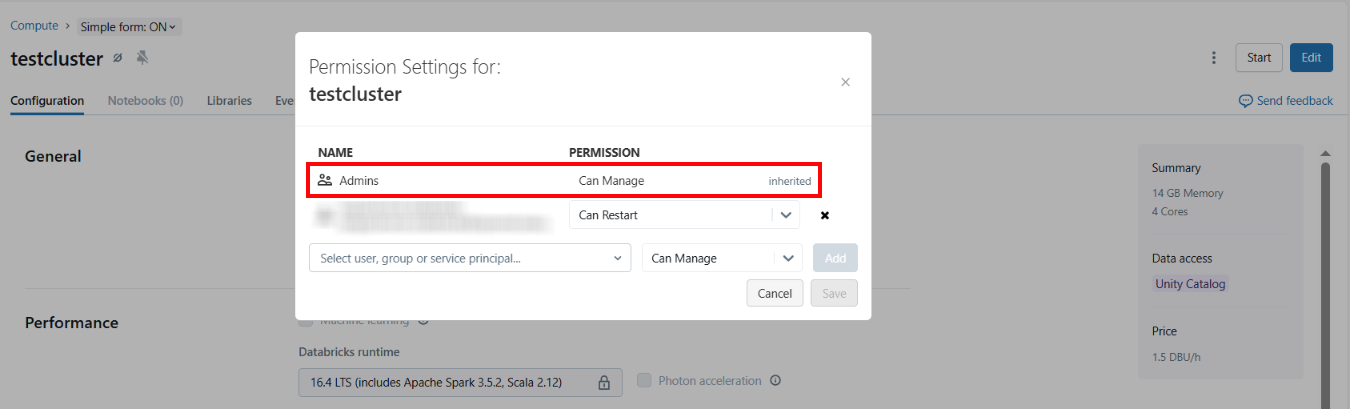
Sarah was granted "Can Manage" permission on her team's development cluster:
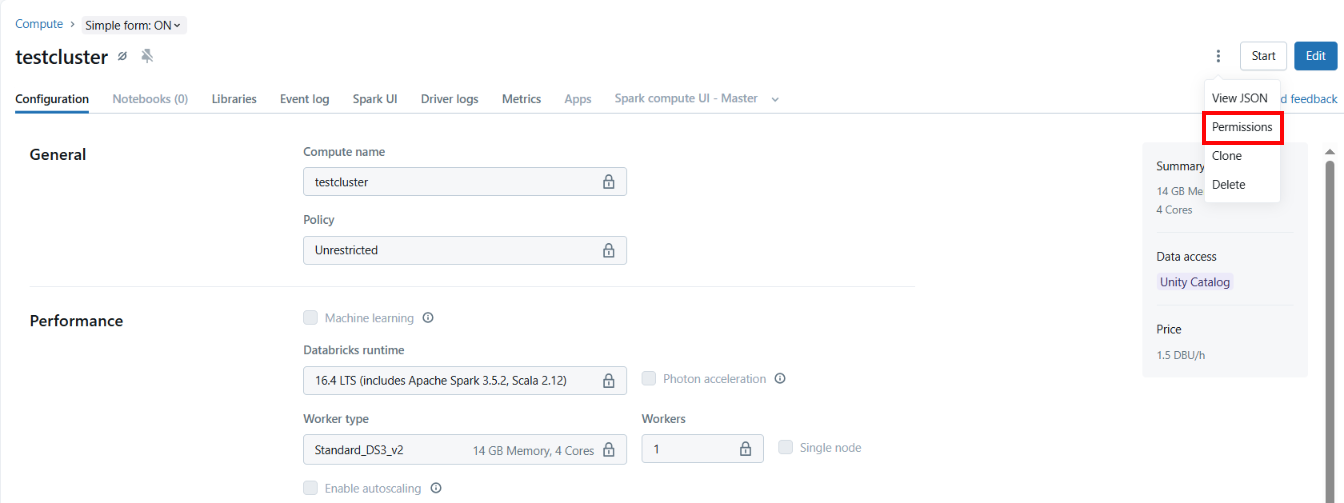
```
Cluster: "platform-team-dev-cluster" (All-Purpose)
Configuration:
Workers: 6 (adjustable based on workload)
Auto-termination: 30 minutes
Permissions:
sarah (team lead): Can Manage ✅
platform-engineers: Can Restart
junior-engineers: Can Attach To
Sarah's Responsibilities:
Week 1 - Heavy ETL Development:
Monday morning:

- Team starting large data transformation project

- Sarah edits cluster configuration: 6 → 12 workers

- Restarts cluster with new configuration

- Team has compute resources needed for development
Week 2 - New Team Member:
Wednesday:

- Alex joins the team as a data engineer

- Sarah adds Alex to "platform-engineers" group (Can Restart)

- Alex has access immediately, no admin ticket needed
Week 3 - Contractor Departure:
Friday:

- External contractor's engagement ends

- Sarah removes contractor from cluster permissions

- Access revoked immediately, security maintained
Week 4 - Cost Optimization:
Monday:
- Light workload week (mostly code reviews and planning)

- Sarah scales down: 12 workers → 4 workers

- Reduces auto-termination: 60 min → 30 min

- Estimated savings: $600 for the week
Result:
- ✅ Team autonomy (no dependency on workspace admins)
- ✅ Flexible resource scaling based on actual needs
- ✅ Fast onboarding: Minutes instead of days
- ✅ Immediate access revocation when needed
- ✅ Cost optimization: ~$2,400/month saved through right-sizing
Remember Tom's $5,247 mistake? It happened because of a single permission misconfiguration:
- Tom had: "Can Attach To" on shared cluster
- Tom needed: "Can Restart" on shared cluster
That one permission difference led to:
- ❌ Blocked workflow (couldn't restart shared cluster)
- ❌ Creating a new 8-worker cluster
- ❌ Missing auto-termination configuration
- ❌ 62 hours of idle runtime
- ❌ $5,247 wasted cost
The lesson: Understanding cluster permissions isn't just technical knowledge, it's the difference between a $6 job and a $5,247 disaster.
User Type | Permission Level | Why |
|---|---|---|
External contractors | No Permissions | No access to production clusters |
Business analysts | Can Attach To | Run queries, cannot disrupt others |
DevOps/Monitoring teams | Can Attach To | View metrics, cannot modify clusters |
Junior data engineers | Can Attach To | Run code on shared clusters safely |
Data engineers | Can Restart | Self-service restart, cost control |
On-call engineers | Can Restart | Fast incident recovery |
Team leads | Can Manage | Resource management and access control |
Platform engineers | Can Manage | Full cluster lifecycle management |
Mistake #1: Giving Everyone "Can Manage"
Problem: Any engineer can accidentally terminate production clusters, change critical configurations, or grant inappropriate access.
Fix: Follow least privilege, most engineers need only "Can Restart"
Mistake #2: Only Giving "Can Attach To" to Engineers
Problem: Engineers create new clusters when auto-termination stops shared clusters, leading to cluster proliferation and cost overruns (like Tom's $5,247 incident).
Fix: Grant "Can Restart" to data engineering teams on development clusters
Mistake #3: Not Giving On-Call "Can Restart" on Production
Problem: On-call engineers cannot recover from cluster failures, requiring escalations at odd hours and increasing recovery time.
Fix: Grant "Can Restart" to on-call rotation for production clusters
- ✅ "Can Attach To" prevents disruption but blocks self-service, use for analysts and monitoring teams
- ✅ "Can Restart" enables self-service without configuration changes, the sweet spot for most data engineers
- ✅ "Can Manage" provides full control, reserve for team leads and platform engineers
- ✅ The wrong permission can cost you thousands of dollars (literally, ask Tom about his $5,247 cluster)
- ✅ Always combine permissions with cluster policies to enforce auto-termination and prevent runaway costs
Understanding permissions + policies together gives you complete control over cluster governance in your data engineering environment.

New engineers shouldn't learn Docker like they're defusing a bomb. Here's how we created a fear-free learning environment—and cut training time in half." (165 characters)

A complete beginner’s guide to data quality, covering key challenges, real-world examples, and best practices for building trustworthy data.
Explore the power of Databricks Lakehouse, Delta tables, and modern data engineering practices to build reliable, scalable, and high-quality data pipelines."
Ever wonder how Netflix instantly unlocks your account after payment, or how live sports scores update in real-time? It's all thanks to Change Data Capture (CDC). Instead of scanning entire databases repeatedly, CDC tracks exactly what changed. Learn how it works with real examples.
A real-world Terraform war story where a “simple” Azure SQL deployment spirals into seven hard-earned lessons, covering deprecated providers, breaking changes, hidden Azure policies, and why cloud tutorials age fast. A practical, honest read for anyone learning Infrastructure as Code the hard way.

From Excel to Interactive Dashboard: A hands-on journey building a dynamic pricing optimizer. I started with manual calculations in Excel to prove I understood the math, then automated the analysis with a Python pricing engine, and finally created an interactive Streamlit dashboard.

Data doesn’t wait - and neither should your insights. This blog breaks down streaming vs batch processing and shows, step by step, how to process real-time data using Azure Databricks.

A curious moment while shopping on Amazon turns into a deep dive into how Rufus, Amazon’s AI assistant, uses Generative AI, RAG, and semantic search to deliver real-time, accurate answers. This blog breaks down the architecture behind conversational commerce in a simple, story-driven way.

This blog talks about Databricks’ Unity Catalog upgrades -like Governed Tags, Automated Data Classification, and ABAC which make data governance smarter, faster, and more automated.

Tired of boring images? Meet the 'Jai & Veeru' of AI! See how combining Claude and Nano Banana Pro creates mind-blowing results for comics, diagrams, and more.
An honest, first-person account of learning dynamic pricing through hands-on Excel analysis. I tackled a real CPG problem : Should FreshJuice implement different prices for weekdays vs weekends across 30 retail stores?

What I thought would be a simple RBAC implementation turned into a comprehensive lesson in Kubernetes deployment. Part 1: Fixing three critical deployment errors. Part 2: Implementing namespace-scoped RBAC security. Real terminal outputs and lessons learned included
This blog walks you through how Databricks Connect completely transforms PySpark development workflow by letting us run Databricks-backed Spark code directly from your local IDE. From setup to debugging to best practices this Blog covers it all.

This blog unpacks how brands like Amazon and Domino’s decide who gets which coupon and why. Learn how simple RFM metrics turn raw purchase data into smart, personalised loyalty offers.

Learn how Snowflake's Query Acceleration Service provides temporary compute bursts for heavy queries without upsizing. Per-second billing, automatic scaling.

A simple ETL job broke into a 5-hour Kubernetes DNS nightmare. This blog walks through the symptoms, the chase, and the surprisingly simple fix.

Say goodbye to deployment headaches. Learn how Databricks Asset Bundles keep your pipelines consistent, reproducible, and stress-free—with real-world examples and practical tips for data engineers.

Tracking sensitive data across Snowflake gets overwhelming fast. Learn how object tagging solved my data governance challenges with automated masking, instant PII discovery, and effortless scaling. From manual spreadsheets to systematic control. A practical guide for data professionals.

My first hand experience learning the essential concepts of Dynamic pricing
Running data quality checks on retail sales distribution data
This blog explores my experience with cleaning datasets during the process of performing EDA for analyzing whether geographical attributes impact sales of beverages

Snowflake recommends 100–250 MB files for optimal loading, but why? What happens when you load one large file versus splitting it into smaller chunks? I tested this with real data, and the results were surprising. Click to discover how this simple change can drastically improve loading performance.
Master the bronze layer foundation of medallion architecture with COPY INTO - the command that handles incremental ingestion and schema evolution automatically. No more duplicate data, no more broken pipelines when new columns arrive. Your complete guide to production-ready raw data ingestion

Learn Git and GitHub step by step with this complete guide. From Git basics to branching, merging, push, pull, and resolving merge conflicts—this tutorial helps beginners and developers collaborate like pros.

Discover how data management, governance, and security work together—just like your favorite food delivery app. Learn why these three pillars turn raw data into trusted insights, ensuring trust, compliance, and business growth.
Beginner’s journey in AWS Data Engineering—building a retail data pipeline with S3, Glue, and Athena. Key lessons on permissions, data lakes, and data quality. A hands-on guide for tackling real-world retail datasets.

A simple request to automate Google feedback forms turned into a technical adventure. From API roadblocks to a smart Google Apps Script pivot, discover how we built a seamless system that cut form creation time from 20 minutes to just 2.

Step-by-step journey of setting up end-to-end AKS monitoring with dashboards, alerts, workbooks, and real-world validations on Azure Kubernetes Service.

My learning experience tracing how an app works when browser is refreshed

Demonstrates the power of AI assisted development to build an end-to-end application grounds up
A hands-on learning journey of building a login and sign-up system from scratch using React, Node.js, Express, and PostgreSQL. Covers real-world challenges, backend integration, password security, and key full-stack development lessons for beginners.

This is the first in a five-part series detailing my experience implementing advanced data engineering solutions with Databricks on Google Cloud Platform. The series covers schema evolution, incremental loading, and orchestration of a robust ELT pipeline.

Discover the 7 major stages of the data engineering lifecycle, from data collection to storage and analysis. Learn the key processes, tools, and best practices that ensure a seamless and efficient data flow, supporting scalable and reliable data systems.

This blog is troubleshooting adventure which navigates networking quirks, uncovers why cluster couldn’t reach PyPI, and find the real fix—without starting from scratch.

Explore query scanning can be optimized from 9.78 MB down to just 3.95 MB using table partitioning. And how to use partitioning, how to decide the right strategy, and the impact it can have on performance and costs.

Dive deeper into query design, optimization techniques, and practical takeaways for BigQuery users.

Wondering when to use a stored procedure vs. a function in SQL? This blog simplifies the differences and helps you choose the right tool for efficient database management and optimized queries.

Discover how BigQuery Omni and BigLake break down data silos, enabling seamless multi-cloud analytics and cost-efficient insights without data movement.

In this article we'll build a motivation towards learning computer vision by solving a real world problem by hand along with assistance with chatGPT

This blog explains how Apache Airflow orchestrates tasks like a conductor leading an orchestra, ensuring smooth and efficient workflow management. Using a fun Romeo and Juliet analogy, it shows how Airflow handles timing, dependencies, and errors.

The blog underscores how snapshots and Point-in-Time Restore (PITR) are essential for data protection, offering a universal, cost-effective solution with applications in disaster recovery, testing, and compliance.
The blog contains the journey of ChatGPT, and what are the limitations of ChatGPT, due to which Langchain came into the picture to overcome the limitations and help us to create applications that can solve our real-time queries
This blog simplifies the complex world of data management by exploring two pivotal concepts: Data Lakes and Data Warehouses.

demystifying the concepts of IaaS, PaaS, and SaaS with Microsoft Azure examples

Discover how Azure Data Factory serves as the ultimate tool for data professionals, simplifying and automating data processes
Revolutionizing e-commerce with Azure Cosmos DB, enhancing data management, personalizing recommendations, real-time responsiveness, and gaining valuable insights.
Highlights the benefits and applications of various NoSQL database types, illustrating how they have revolutionized data management for modern businesses.

This blog delves into the capabilities of Calendar Events Automation using App Script.
Dive into the fundamental concepts and phases of ETL, learning how to extract valuable data, transform it into actionable insights, and load it seamlessly into your systems.

An easy to follow guide prepared based on our experience with upskilling thousands of learners in Data Literacy

Teaching a Robot to Recognize Pastries with Neural Networks and artificial intelligence (AI)

Streamlining Storage Management for E-commerce Business by exploring Flat vs. Hierarchical Systems

Figuring out how Cloud help reduce the Total Cost of Ownership of the IT infrastructure

Understand the circumstances which force organizations to start thinking about migration their business to cloud